Patching events
A patching event represents a single execution of a patching plan. Instead of cron window (like in plans) it has an exact execution time window defined.
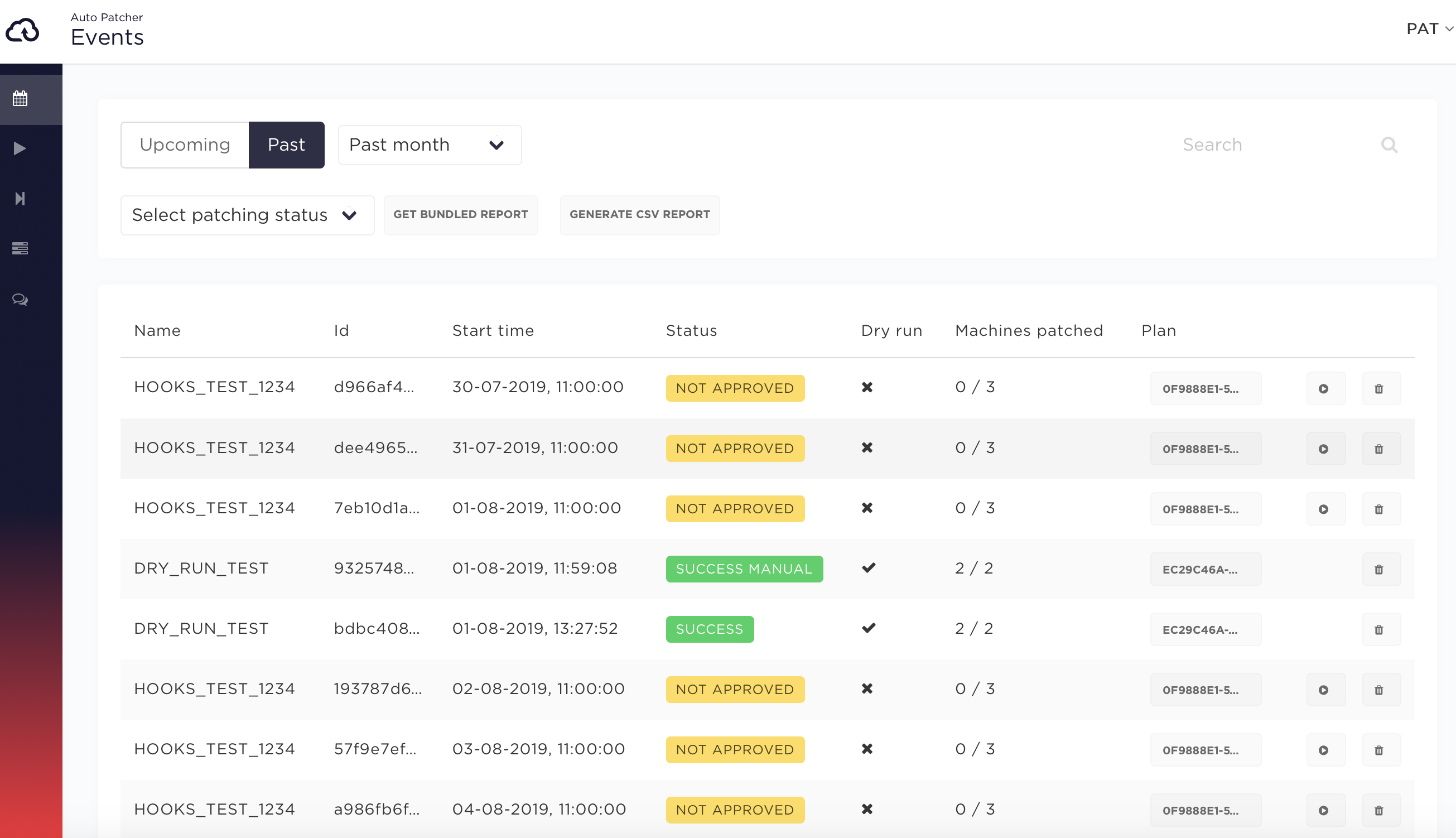
Events list
Events list view in UI allows to filter the events by:
- Time
- Upcoming events which are generated in advance based on schedule plan (the default value is 3 days)
- Past events
- Patching status:
- upcoming - events which are generated in advance based on schedule plan
- not approved - events which need to be manually approved before they can be executed
- in progress - currently executing events
- success - patching finished successfully
- success manual - events which have at least one machine marked as success manual and rest are success
- failed - at least one of the following conditions is true:
- at least one machine has failed patching
- at least one plan-global pre/post hook has failed
- at least one pre/post host hook failed for at least one machine
- scanning for machines in a dynamic plan has failed
- partial success - at least one machine succeeded but some failure occurred in other parts of the flow (see above)
- deleted - event was deleted
Event details
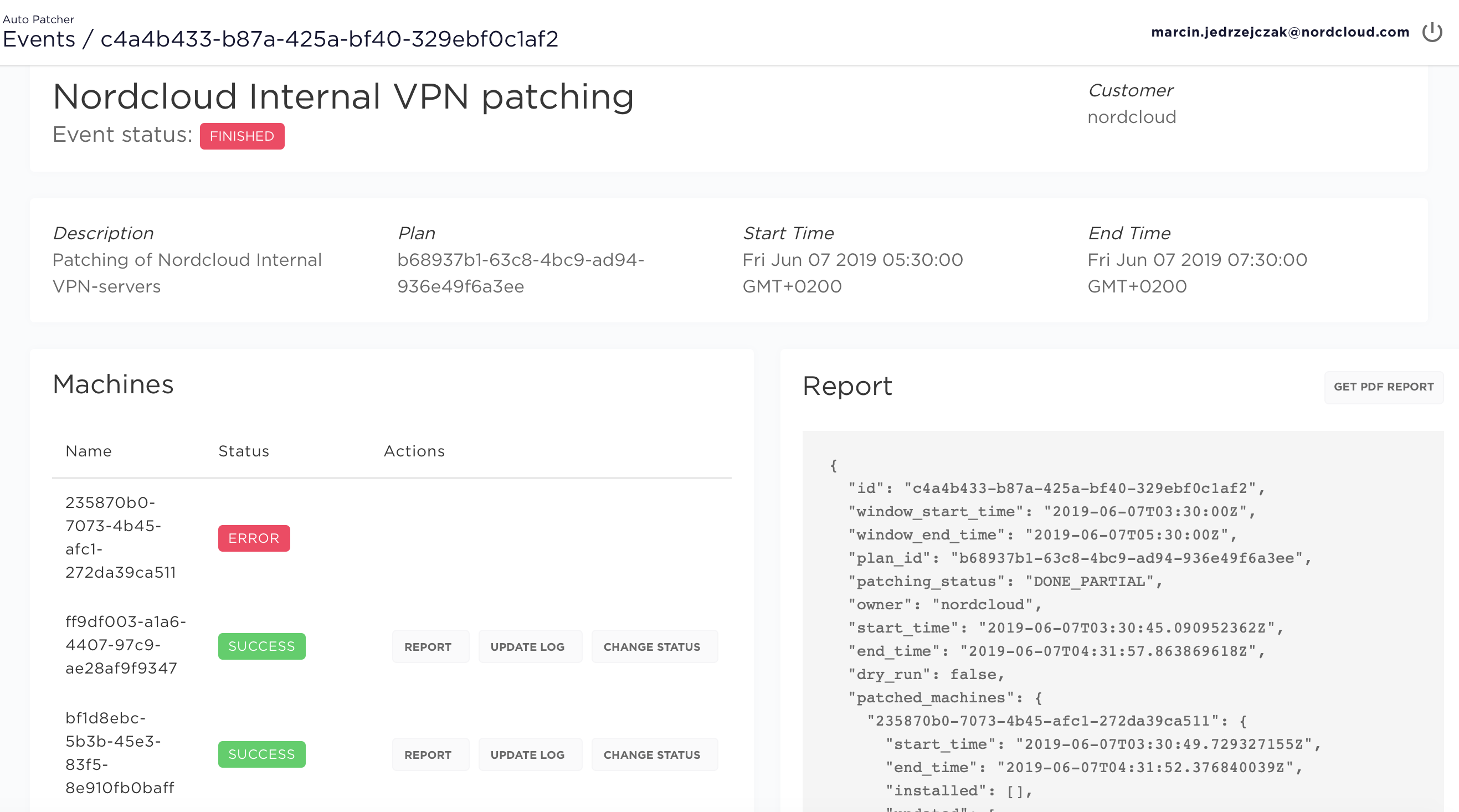
Event details view allows to:
- get PDF report - which is generated after patching
- view a list of machines from the given event along with their patching status:
- success - machine was patches successfully
- success no updates - no updates were available at the time of the patching
- error - something wrong with AutoPatcher, contact support team
- not available - machine was offline or SSM agent does not work
- failed - machine patching has failed
- omitted - at least one of the following conditions is true:
- at least one plan-global pre hook has failed (in this case all machines are marked as omitted)
- at least one pre host hook for this machine has failed
- the patching command generation has failed (e.g. if the s3_custom_script field in the machine is defined but AutoPatcher has failed to retrieve the script from S3)
- timeout - when instance patching took more time that time window length - it will result with the
TimedOut. In this case we advice to check patching manually and increase time window if it's possible.
- change patching status manually - read more
- show update log - output from machine
- show report from single machine - what patching update were made
Event execution timeline
Since the version 1.131 AutoPatcher handles long-running patchings in a different manner.
The change was introduced mainly in order to prevent the event execution to span out
of its reserved time window thus potentially delaying the execution of the following
events in a pipeline.
The additional effect of this change is that it prevents running several patchings on the same machine simultaneously. More precisely, AutoPatcher will never run more than one SSM command on the same machine at the same time.
The detailed description of the new behavior is presented in the following subsection.
New timeout behavior
An example patching flow is presented below. It represents two machines (M1 and M2)
being patched by three different patching events (Event A, Event B and Event C).
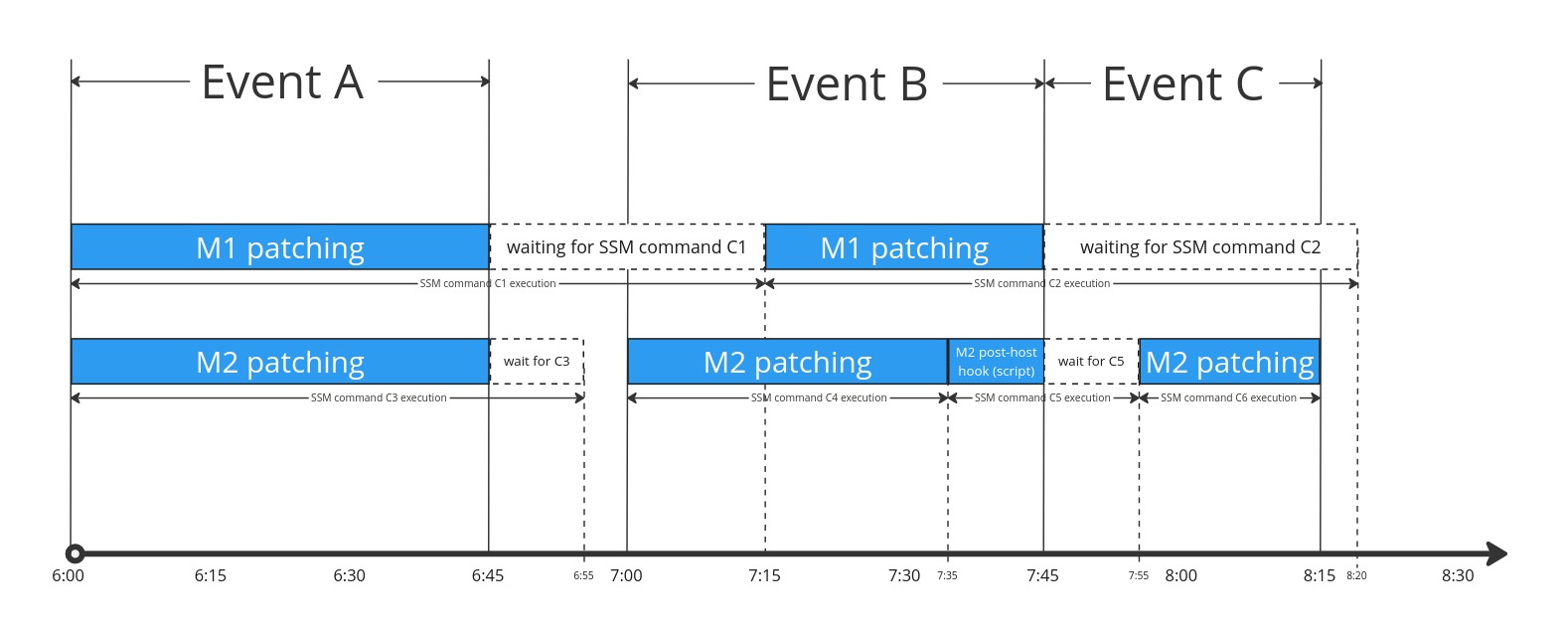
The important points of what is happening in the timeline are described below:
6:00-Event Astarts executing by running two simultaneous patching commands via SSM:C1forM1- and
C3forM2
6:45- The event's time window ends, however two SSM commands are still in progress. Since the patching command did not finish in the reserved time window, both machines are marked asTimedOutinEvent A.6:55- TheC3SSM command is finished and AutoPatcher registers that fact in the background.7:00- EventBstarts executing. The machineM2starts patching immediately since its previous patching commandC3has already finished. The machineM1however still has an SSM command (C1) running in the background therefore AutoPatcher waits for this command to finish before startingM1patching.7:15- TheC1SSM command reaches a finite state in the background, which allows AutoPatcher to start patchingM1.7:35- The patching ofM2finishes (the exact status depends on the SSM command status and is not relevant here) and the execution of a post-host hook forM2starts. Since the type of the hook isscriptit is executed (similar to the patching) as an SSM command.7:45:- The time window of
Event Bends. The patching forM1(commandC2) is still in progress in SSM soM1is marked asTimedOutinEvent B. The command executing the post-host hook script forM2is in progress as well, so the hook status is given and error code500and the appropriate message about the timeout is associated with the hook. Event Cstarts execution at the same time. Since both machines still have running SSM commands in the background no action is performed on the machines by AutoPatcher yet.
- The time window of
7:55- The background commandC5reaches a finite state and AutoPatcher starts patchingM2.8:15- The time window ofEvent Cends. The patching command forM2finishes at the same time soM2's status becomes the same as the commandC6status. TheC2background command is still in progress however, and since AutoPatcher wasn't able to even start theM1patching inEvent C, this machine is marked asNot_in_time_window.8:20- TheC2SSM command finally finishes in the background. The command status returned by SSM is not recorded anywhere inEvent BnorEvent Chowever.M1retains its statusTimedOutandNot_in_time_windowin those events respectively. On the other hand theM1becomes "unblocked" for the potential next patchings.
Manual events approving
When a single event from a pipeline step is approved manually, it is given the temporary APPROVED status along with all other events in the same step. When all the previous steps are finished (e.g. if all events from them have statuses DONE, DONE_MANUAL, DONE_PARTIAL, DONE_ERROR, DONE_ERROR_MANUAL or DELETED), all APPROVED events from the current step are automatically transitioned to NEW (aka UPCOMING - the UI label for NEW) state, which means they will be executed on their schedule (APPROVED events won't be executed).
Example:
A → B → C
If step A is finished but B is still in progress (or NEW, or NOT_APPROVED), approving C will not give the desired results, as it will be stuck in the APPROVED state and won't start. The user should either wait for all events from B to finish or to delete them manually before approving of the C step.
Advanced features
Partial patching
This feature allows the user to run patching process for the selected subset of machines, event-global hooks and host hooks in an already finished event.
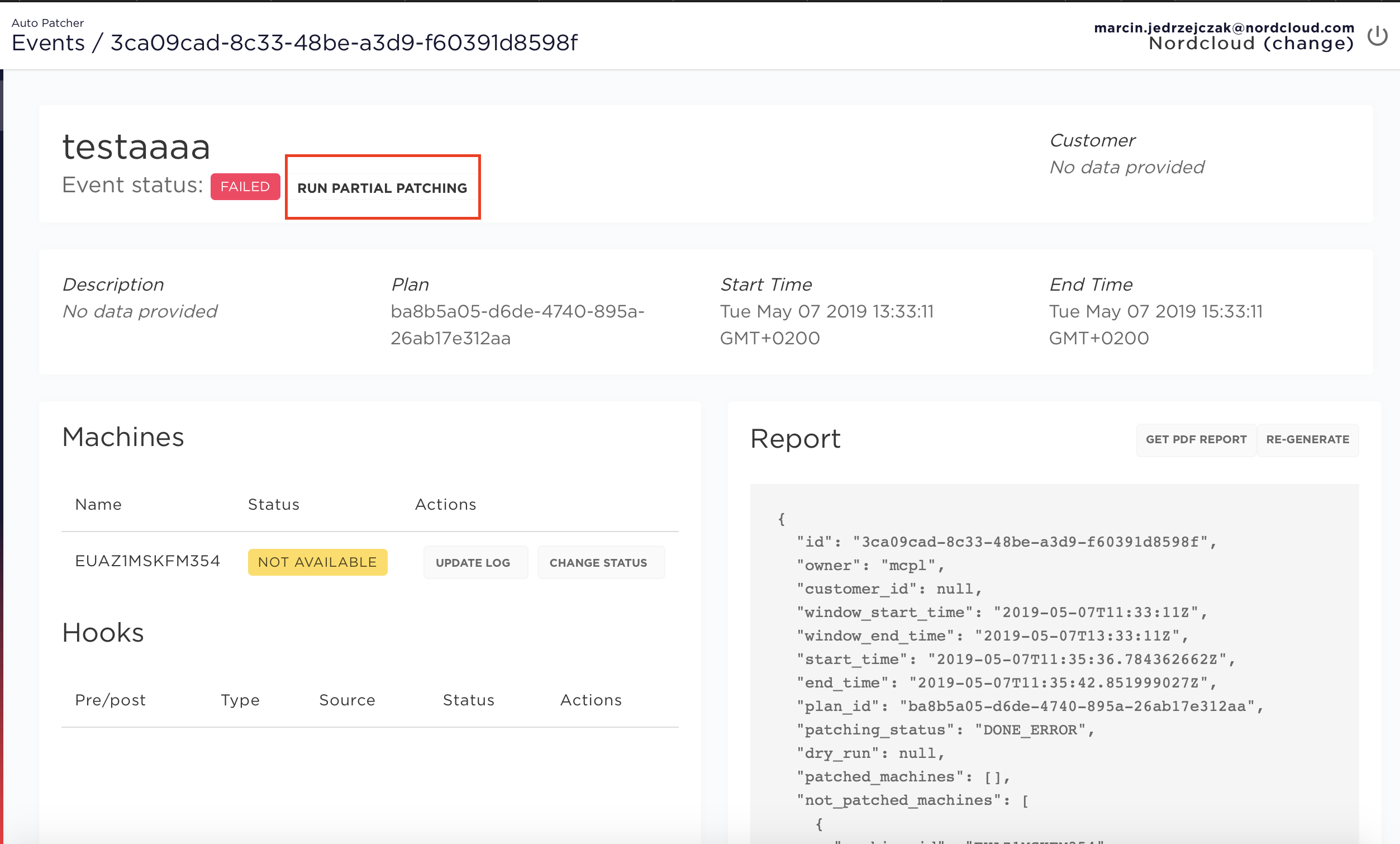
Step 1
Select event with failed status and click the RUN PARTIAL PATCHING button next to the status
Step 2
Manually select which steps you want to re-run: pre hooks, post hooks or machine-specific:
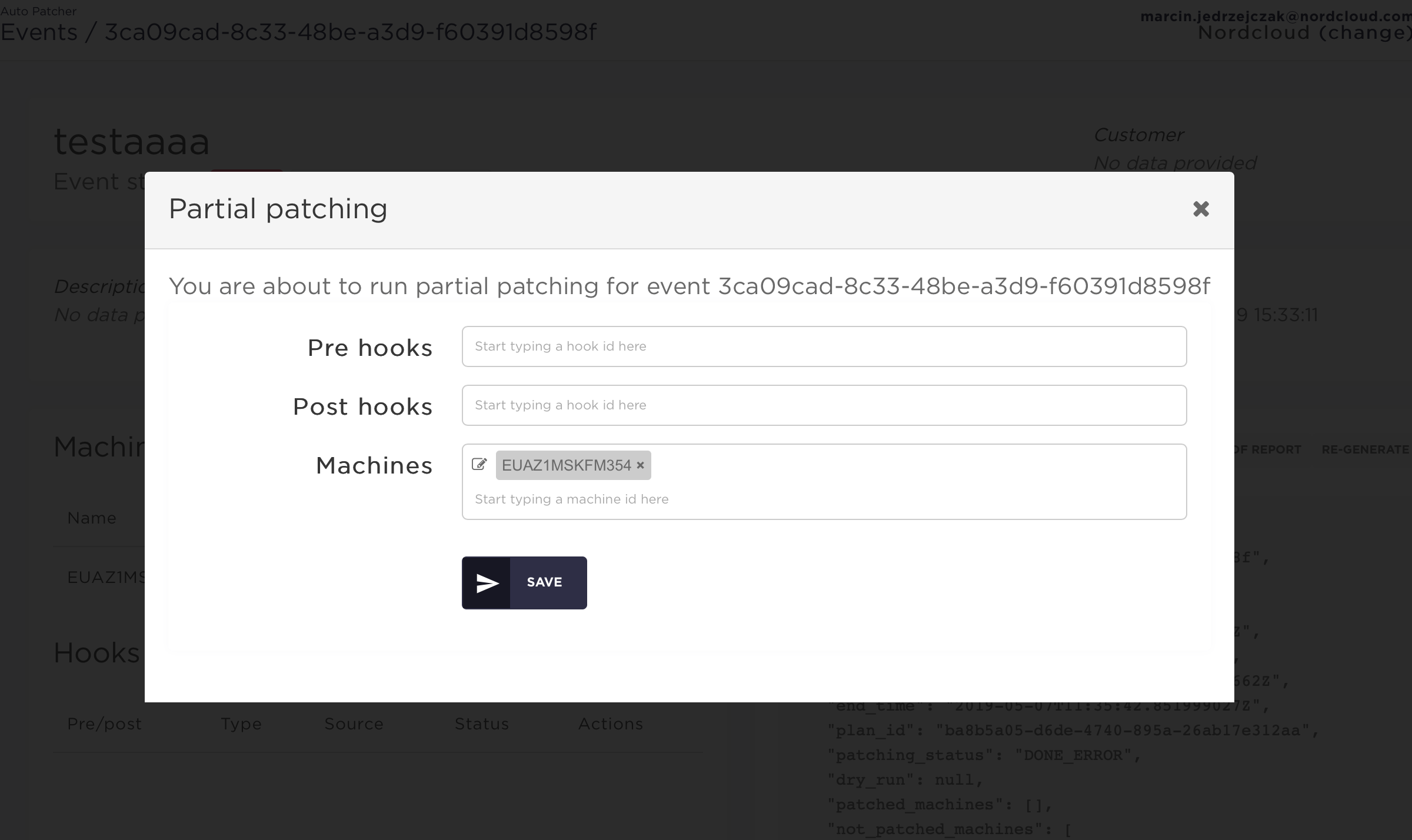
By default all machines, pre hooks and post hooks are included, you can manually remove some of them from the list.
Step 3
By clicking the edit icon to the left of a machine you can define machine-specific partial patching options:
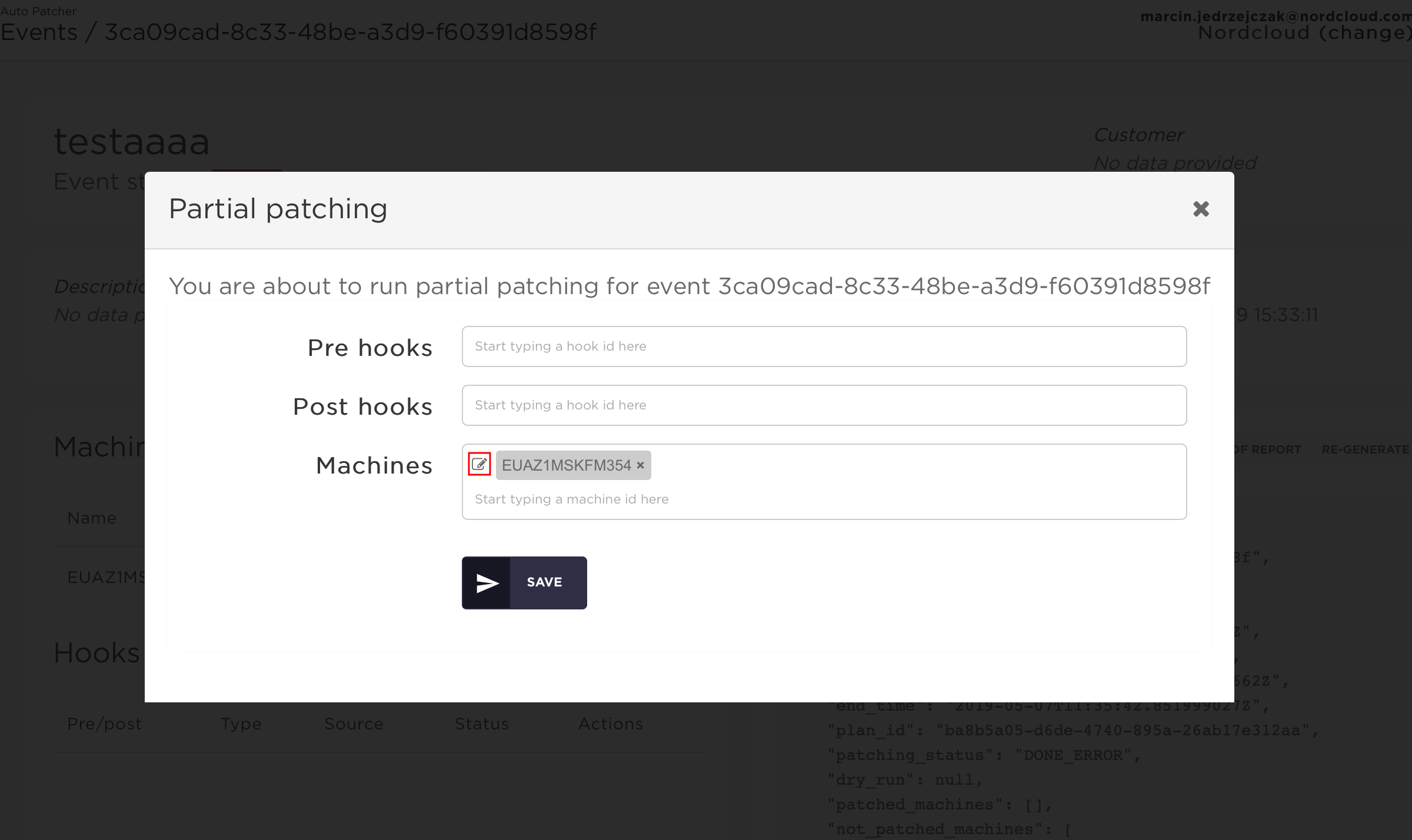
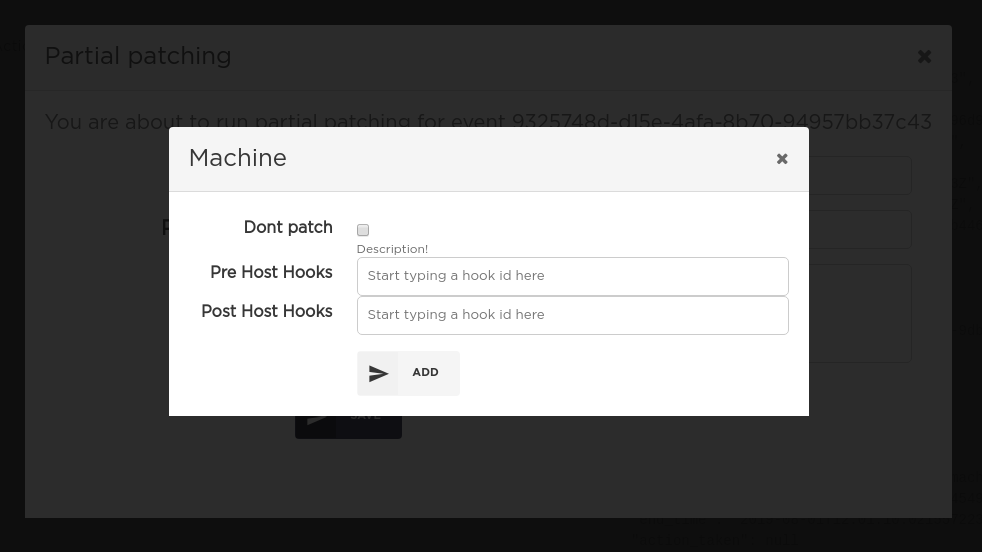
By default all pre and post host hooks are included, you can manually remove some of them from the list.
Report from partial patching
When a machine is patched multiple times in the context of the same event (by calling partial patching on it at least once) the patching report is built based on the output from the last partial patching only.
Technical details
Patching status
Only finished events can be partially executed. If a request for partial patching is issued for an event with a different status an error will be returned. Otherwise, the event's status will be set to IN_PROGRESS until partial patching is finished.
Start and end times
Start time and end time values for the event are kept unchanged after partial patching.
Pipelines
There is a slight difference in pipeline logic with regard to partial patching. Let's consider the following scenario:
- There is a pipeline of two events: A → B
- Event B has policy set to success_or_approval
- Event A has failed, so event B has not approved status
- A partial patching process is executed for the event A and in effect its status is changed to DONE (e.g. there was one failed machine in A which was patched successfully the second time)
In this case the status of the event B will not be changed to UPCOMING automatically and B will need to be approved manually.
Manual status change
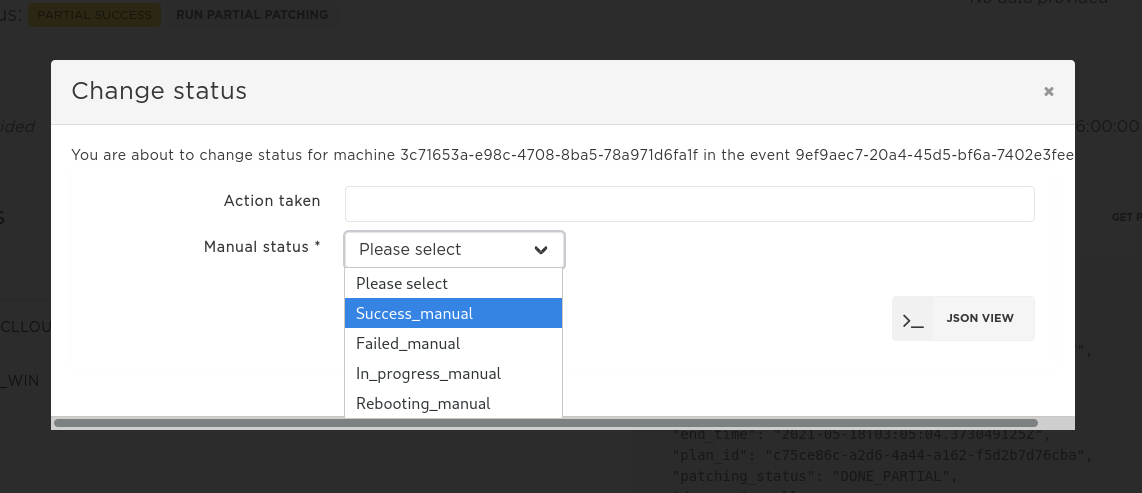
If some machine has not patched successfully during the automatic patching the user has the ability to change its status after some manual action was done on the machine. The typical use for this feature is to ensure that the patching report has an overall status SUCCCESS.
Available input options
The list of available manual statuses:
Success_manualFailed_manualIn_progress_manualRebooting_manual
If either Success_manual or Failed_manual is chosen an additional action_taken field is required. It describes the action performed on the machine manually.
If In_progress_manual or Rebooting_manual is chosen the status of the whole event is changed to IN_PROGRESS until this machine is changed to Success_manual or Failed_manual.
If there is a failed host hook for some machine and it is the only reason the event is in DONE_PARTIAL state changing the machine's status to Success_manual will transfer the event to DONE_MANUAL state. In other words, the failed status of host hooks of machines with Success_manual status is not taken into account while calculating the overall event status.
Changing the status in UI
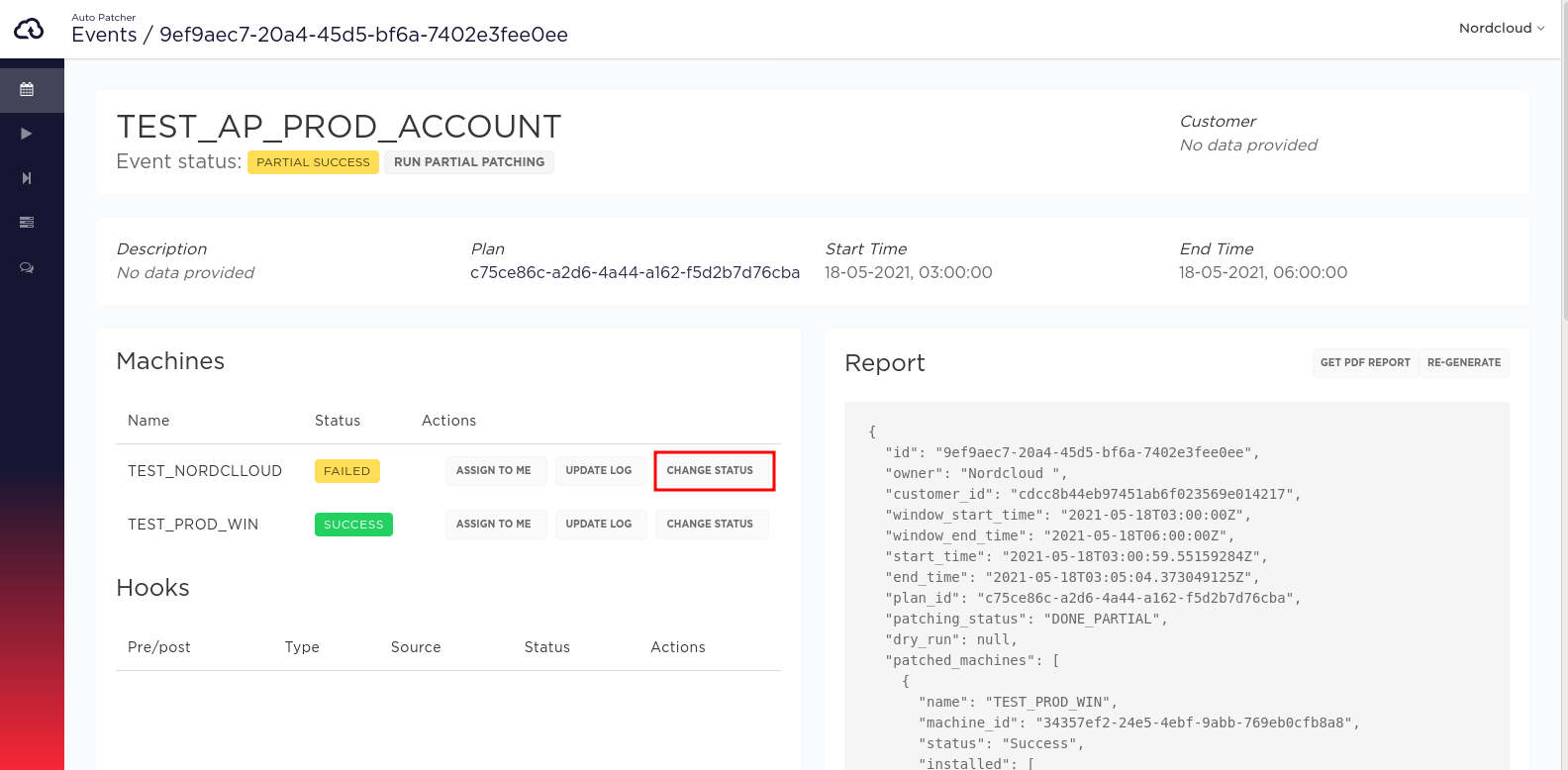
Change the status in CLI
Step 1
Prepare a file named change.json with the following content, replacing <EVENT_ID>, <MACHINE_ID>, <STATUS>, <ACTION> with the appropriate values.
{"event_id": "<EVENT_ID>","machine_id": "<MACHINE_ID>","manual_status": "<STATUS>","action_taken": "<ACTION>"}
Step 2
Run the following CLI command:
nc-autopatcher-cli event change_status --file change.json